
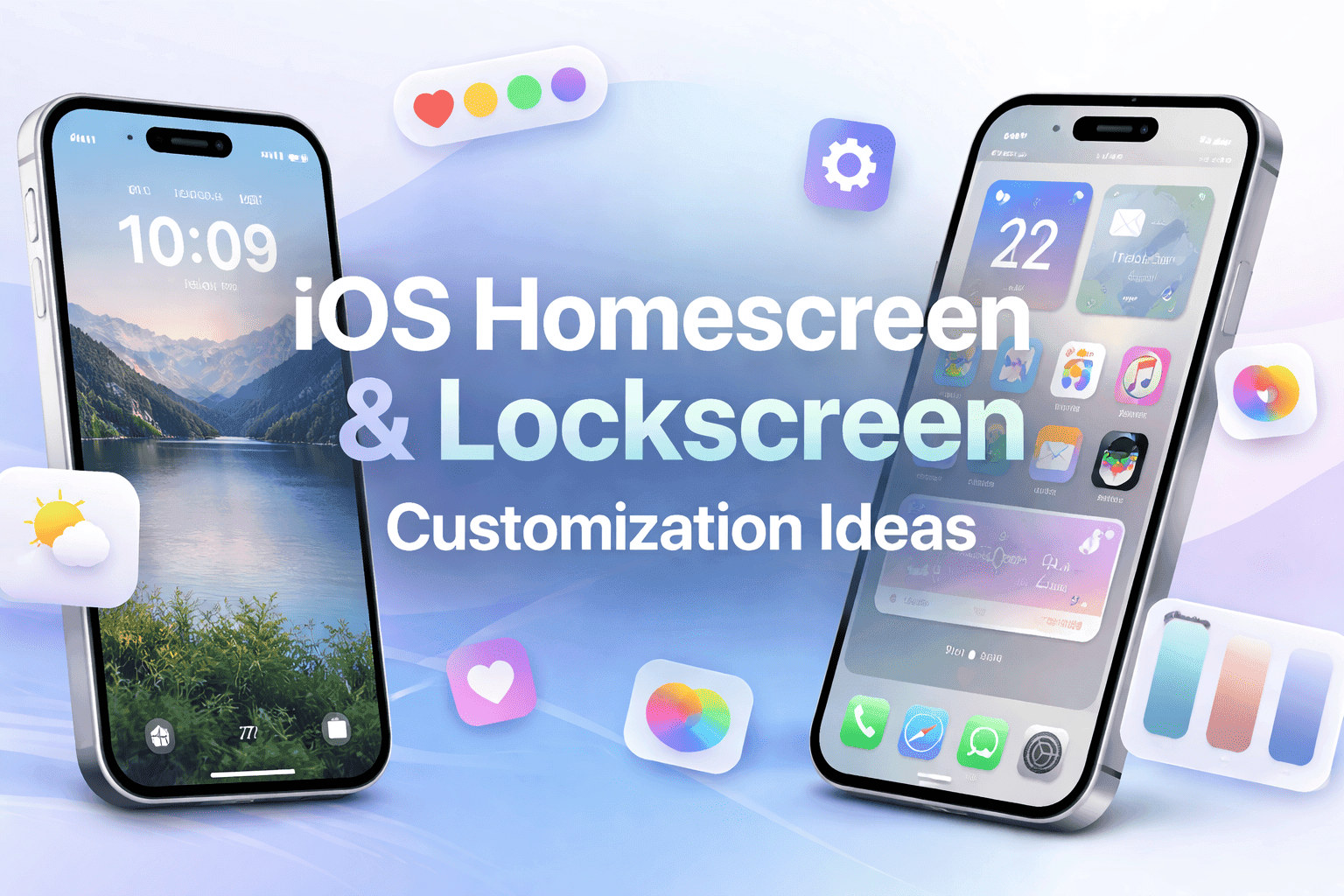
Personalizing your iPhone is no longer limited to changing a wallpaper. With recent iOS updates, the home screen and lock screen have become fully customizable spaces where layout, widgets, colors, and images can reflect how you actually use your phone. Whether you prefer a clean, distraction-free look or a more information-rich layout, modern iOS tools make it possible to design a setup that feels both personal and practical.
These iOS homescreen and lockscreen customization ideas focus on visual balance, usability, and long-term consistency rather than short-lived trends. A thoughtful setup can reduce friction, surface the information you need most, and make your device easier to use throughout the day.
iOS homescreen and lockscreen customization ideas
The lock screen is now an interactive surface instead of a static clock display. You can layer widgets, change fonts, and adjust colors to create a cohesive look that matches how you use your phone.
Minimal layouts work well for people who want quick access without visual noise. A single weather or calendar widget paired with a neutral wallpaper keeps everything readable. On the other hand, more data-driven users may prefer stacking fitness, battery, or reminders widgets for at-a-glance awareness.
Color also plays a role. Matching widget colors with your wallpaper creates visual harmony, while using contrast helps key elements stand out. Photos can be static or set to shuffle automatically, which is especially useful if you enjoy seeing different personal moments every time you unlock your phone.
On the home screen, arranging apps by usage rather than category usually leads to better ergonomics. If you enjoy visual order, iOS supports grid-based layouts and widget blocks that make the interface easier to scan. If you use Android alongside iOS, it is interesting to see how similar layout principles apply when you arrange apps alphabetically on Android for a more structured experience.
Personalize iPhone lockscreen
Before you start adding widgets and images, it helps to understand how the lock screen editor works. These steps give you full control over how information appears before you even unlock your phone.
- Open lockscreen editor
Wake your iPhone and long-press anywhere on the lock screen until the customization gallery appears.
- Create or select a lockscreen
Swipe left or right to choose an existing layout, or tap the plus icon to create a new one from photos, wallpapers, or color themes.
- Edit layout and style
Tap “Customize” to adjust the clock font, color, and widget positions. You can also change how the wallpaper appears behind the clock.
- Add widgets
Select the widget area to add items such as weather, calendar, battery, or fitness tracking.
- Save and activate
Once everything looks right, save the layout and set it as your active lock screen.
Best iOS lockscreen widgets to use
Widgets are the core of modern iOS customization. The most useful ones balance quick information with clean design.
Calendar widgets are ideal for seeing upcoming events without opening an app. Weather widgets give immediate context when planning your day. Fitness and activity widgets keep health goals visible, while music controls allow you to manage playback directly from the lock screen.
If you rely heavily on communication tools, pairing your lock screen with messaging or call shortcuts can save time. Features introduced in recent iOS updates, including those covered in the iOS 18 update overview, have made these widgets more responsive and visually consistent.
Productivity-focused users may also want to explore to-do list or notes widgets to capture ideas quickly, especially when multitasking between apps.
Aesthetic iPhone lockscreen ideas
A visually pleasing lock screen can make everyday phone use feel more enjoyable without reducing usability.
Minimalist designs focus on negative space and muted colors. Nature-themed wallpapers with subtle gradients create a calm look that pairs well with simple widgets. Quote-based layouts add a personal or motivational element without clutter.
Themed lock screens are also popular. Music lovers might use album artwork with a media widget, while travelers might rotate scenic photos with a world clock or weather widget. Using your own photos adds emotional value and makes the device feel uniquely yours.
The goal is not to overload the screen, but to create a layout that feels intentional and balanced.
Free iOS lockscreen widget apps
Third-party apps expand what iOS widgets can display and how they look.
Widgetsmith is widely used for its flexibility, letting you design widgets that match your color palette and data preferences. Lock Screeny focuses on personalization features like countdowns and custom text. MD Blank Widget is useful if you want invisible or transparent widgets to fine-tune spacing and alignment.
These tools give you more control over how your layout feels, especially if you want something more refined than the default options.
The future of iOS homescreen themes
iOS customization is moving toward adaptive and context-aware design. Future themes are expected to change subtly throughout the day, shifting colors and brightness based on time or lighting. Artificial intelligence may eventually suggest layouts based on how you use your apps, similar to how AI tools already tailor experiences in areas like smart content and automation.
Interactive wallpapers and subtle animations are also becoming more common, making the interface feel less static while still preserving battery life and performance.
FAQ
Yes. iOS allows you to set separate wallpapers for the home screen and lock screen, so each can have its own style and purpose.
Most lock screen widgets use minimal background activity. Standard widgets like weather, calendar, and battery status have very little impact on battery performance.
Yes. You can create a lock screen with no widgets and only a clock and wallpaper for a minimalist look.
Apps downloaded from the App Store follow Apple’s privacy and security rules. It is still recommended to review permissions and avoid apps that request unnecessary access.
Major iOS updates may reset some visual settings, but your lock screen layouts and widgets are usually preserved unless you manually delete them.
Conclusion
iOS homescreen and lockscreen customization is about more than appearance. A well-designed setup makes information easier to access, reduces distractions, and reflects how you actually use your phone. By combining thoughtful layouts, useful widgets, and consistent visuals, you can create an iPhone interface that feels both personal and practical every day.

Hi, I’m Aditya Rathod, a tech content creator and the founder of Zynicon.com.
At Zynicon, I publish clear, practical, and experience-driven content focused on technology, apps, gadgets, AI tools, and emerging digital trends. My goal is to simplify fast-evolving tech topics and present them in a way that is easy to understand, reliable, and genuinely helpful for both beginners and tech enthusiasts.
I actively explore new tools, test apps and devices, and research digital features to ensure every guide and tutorial is written manually, fact-checked, and based on real-world usage. Rather than using hype or jargon, I focus on clarity, accuracy, and usefulness so readers can make informed decisions with confidence.
Through Zynicon, I aim to build a trusted knowledge platform where users can stay updated with technology, discover useful solutions, and learn at their own pace—without confusion or misleading information.
Thank you for being part of the Zynicon community and taking the time to read my work.

