

A flip clock widget adds a classic, retro-style look to your desktop while displaying time in a clean and visually appealing way. Many users prefer flip clocks over default system clocks because they are easy to read, distraction-free, and stylish.
If you are looking for a simple way to customize your desktop, adding a flip clock widget is a great option. It works well for productivity, minimal setups, and aesthetic workspaces.
In this guide, you will learn how to add a flip clock widget to desktop on both Windows and Mac, explore the best flip clock options, and understand important things to consider before installing one.
How to Add Flip Clock Widget to Desktop
Learn how to add a flip clock widget to your desktop on Windows and Mac using safe and trusted methods.
- Choose a Flip Clock Widget
Select a trusted flip clock widget such as Fliqlo that supports both Windows and macOS.
- Download the Flip Clock Widget
Visit the official website of the flip clock widget and download the version compatible with your operating system.
- Install the Widget on Your Computer
Open the downloaded file and follow the installation instructions. On Mac, drag the app to Applications. On Windows, complete the setup wizard.
- Allow Required Permissions
If prompted, allow system permissions so the widget can run properly on your desktop or as a screensaver.
- Customize the Flip Clock Display
Adjust clock size, brightness, format, or display settings based on your preference.
- Set the Flip Clock as a Screensaver
Open system display or screensaver settings and select the flip clock widget to enable it on your desktop.
What Is a Flip Clock Widget?
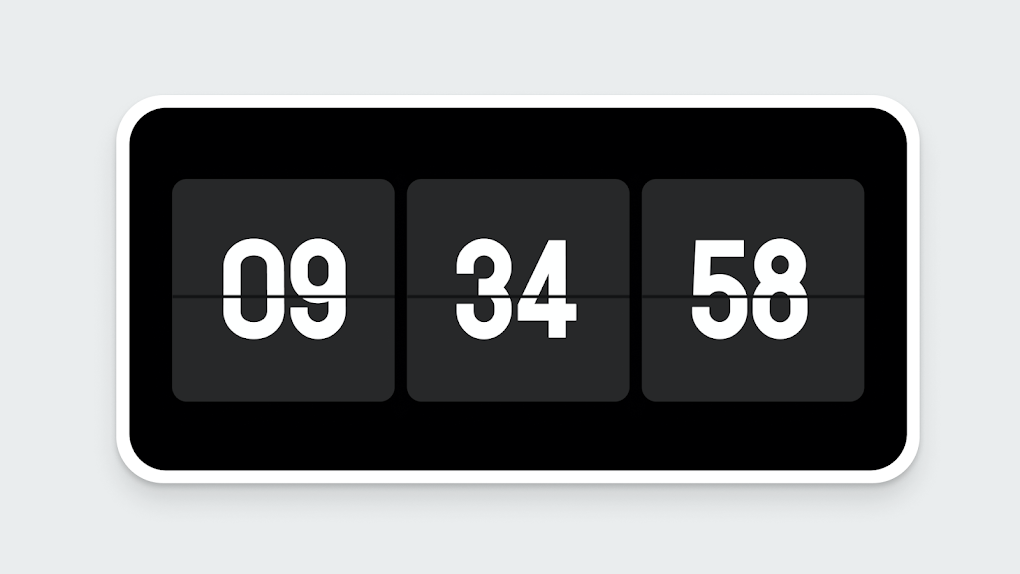
A flip clock widget is a digital clock that mimics the mechanical flip-style clocks commonly used in the past. Instead of smooth number transitions, the time “flips” from one number to another, creating a retro animation effect.
Flip clock widgets are commonly used as:
- Desktop widgets
- Screensavers
- Wallpaper overlays
They are lightweight, easy to install, and compatible with most modern operating systems.
📌Recommendation: Discover more useful free and premium apps in our list of The Best Budgeting Apps for 2025.
Best Flip Clock Widgets for Desktop
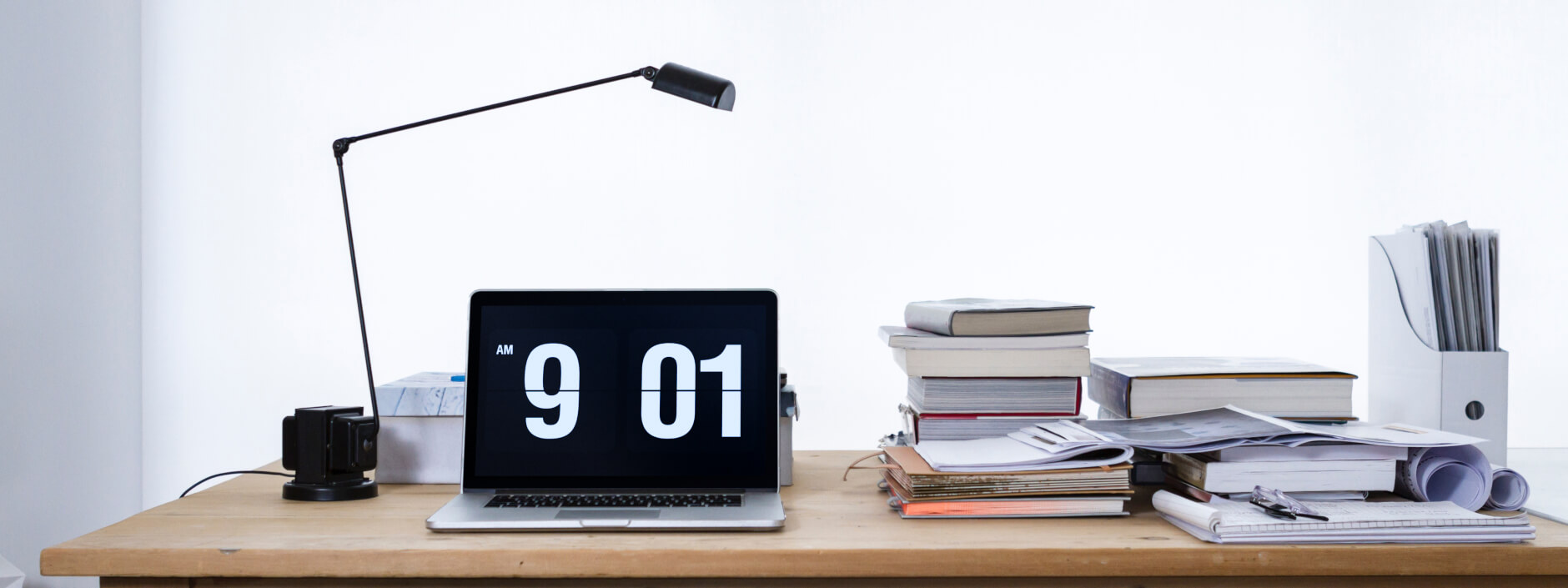
Image Credits: Fliqlo
Best Flip Clock Widgets for Windows
- Fliqlo
A simple and minimalist flip clock that works as a screensaver. It is lightweight and easy to configure. - Dexclock
Displays a flip clock directly on your desktop wallpaper with adjustable fonts and layouts. - ClocX
An advanced desktop clock offering alarms, transparency, and customization options.
Best Flip Clock Widgets for Mac
- Fliqlo (macOS)
Offers the same clean flip clock design as the Windows version. - Digital Flip Clock
A customizable clock with multiple design themes for macOS users. - FlipClock App
A dedicated macOS application with additional features and display controls.
How to Add Flip Clock Widget to Windows Desktop
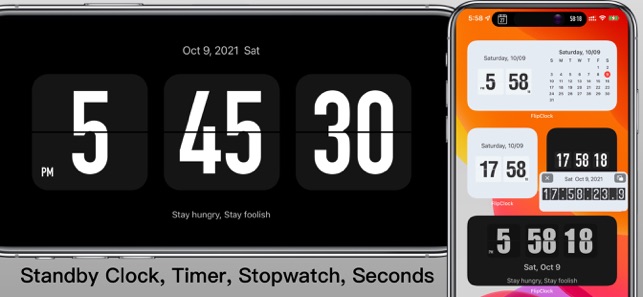
Step 1: Download the Flip Clock Widget
- Visit the official website of your chosen flip clock widget (Fliqlo is recommended).
- Download the Windows version.
- Save the file to your computer.
Step 2: Install and Configure the Widget
- Open the downloaded file and follow the installation instructions.
- Launch the widget after installation.
- Customize clock size, font, or display options if available.
Step 3: Set the Flip Clock as a Screensaver (For Fliqlo)
- Right-click on the desktop and select Personalization.
- Go to Lock Screen → Screen Saver Settings.
- Choose Fliqlo from the list.
- Click Apply and then OK.
How to Add Flip Clock Widget to Mac Desktop
Step 1: Download the Flip Clock Widget
- Visit the official widget website (Fliqlo recommended).
- Download the macOS version.
- Open the
.dmgfile and drag the app to Applications.
Step 2: Install and Enable the Widget
- Open System Settings → Privacy & Security.
- Allow the app if macOS asks for permission.
- Launch the widget and adjust settings.
Step 3: Set as Screensaver (For Fliqlo)
- Open System Settings → Desktop & Screen Saver.
- Select Fliqlo.
- Adjust size and brightness.
- Save the settings.
Key Considerations Before Using a Flip Clock Widget
Before installing a flip clock widget, keep these points in mind:
- System Performance: Lightweight widgets are best for older systems.
- Customization Options: Choose widgets that allow size and brightness control.
- Compatibility: Ensure support for your OS version.
- Security: Download only from official or trusted sources.
Common Mistakes to Avoid
- Downloading widgets from unverified websites
- Ignoring system requirements
- Using multiple widgets at the same time
- Skipping customization options
Avoiding these mistakes ensures a smooth and safe experience.
FAQ
Yes, some web-based flip clocks work in browsers, but desktop widgets offer better performance and visibility.
Check your screen resolution, display scaling, and system permissions.
Yes, Fliqlo supports both platforms.
On Windows, remove it from Programs & Features. On Mac, drag it to the Trash.
Conclusion
Adding a flip clock widget to your desktop is an easy way to improve both aesthetics and productivity. Whether you are using Windows or Mac, the steps in this guide make the setup simple and beginner-friendly.
If you want a clean, stylish, and functional desktop, a flip clock widget is a great choice.
For more practical tech guides like this, visit Zynicon regularly.

Hi, I’m Aditya Rathod, a tech content creator and the founder of Zynicon.com.
At Zynicon, I publish clear, practical, and experience-driven content focused on technology, apps, gadgets, AI tools, and emerging digital trends. My goal is to simplify fast-evolving tech topics and present them in a way that is easy to understand, reliable, and genuinely helpful for both beginners and tech enthusiasts.
I actively explore new tools, test apps and devices, and research digital features to ensure every guide and tutorial is written manually, fact-checked, and based on real-world usage. Rather than using hype or jargon, I focus on clarity, accuracy, and usefulness so readers can make informed decisions with confidence.
Through Zynicon, I aim to build a trusted knowledge platform where users can stay updated with technology, discover useful solutions, and learn at their own pace—without confusion or misleading information.
Thank you for being part of the Zynicon community and taking the time to read my work.


Vidmate MOD APK: Download Unlimited Videos with the 2025 Latest Vidmate APK [Free,Fast & Safe]
vidmateofficials
Well explained about the installation part!!
Thank you! Glad you found the installation guide helpful! 🙂